On Admin Home in the middle of the left hand column is the email section.
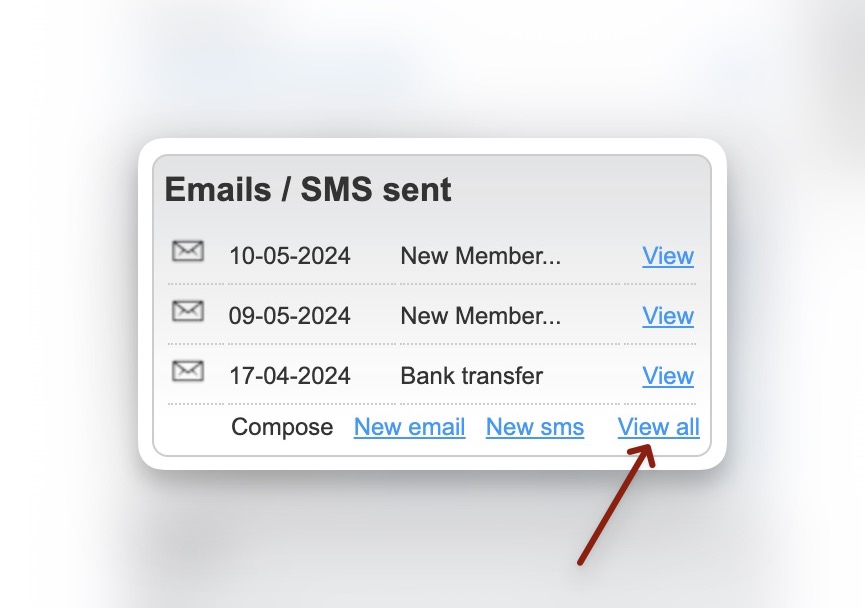
in the block select view all
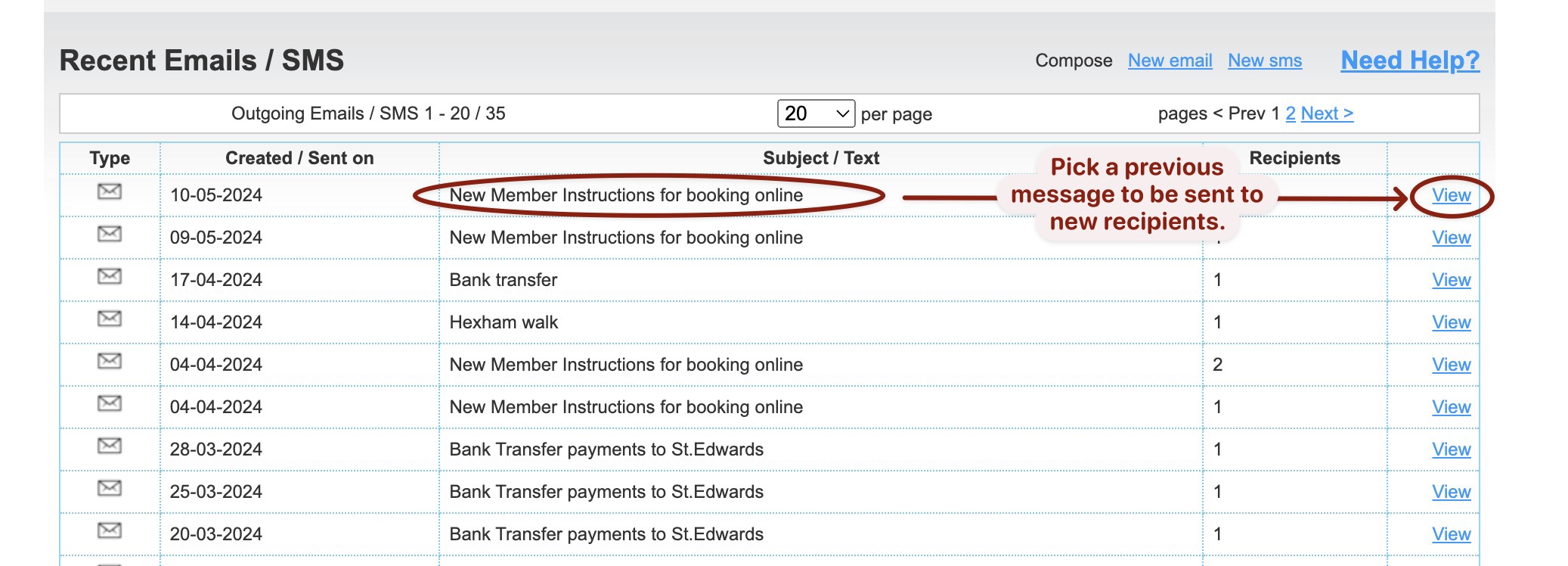
Select a Message
Find the message you want to use based on it’s subject and click view.
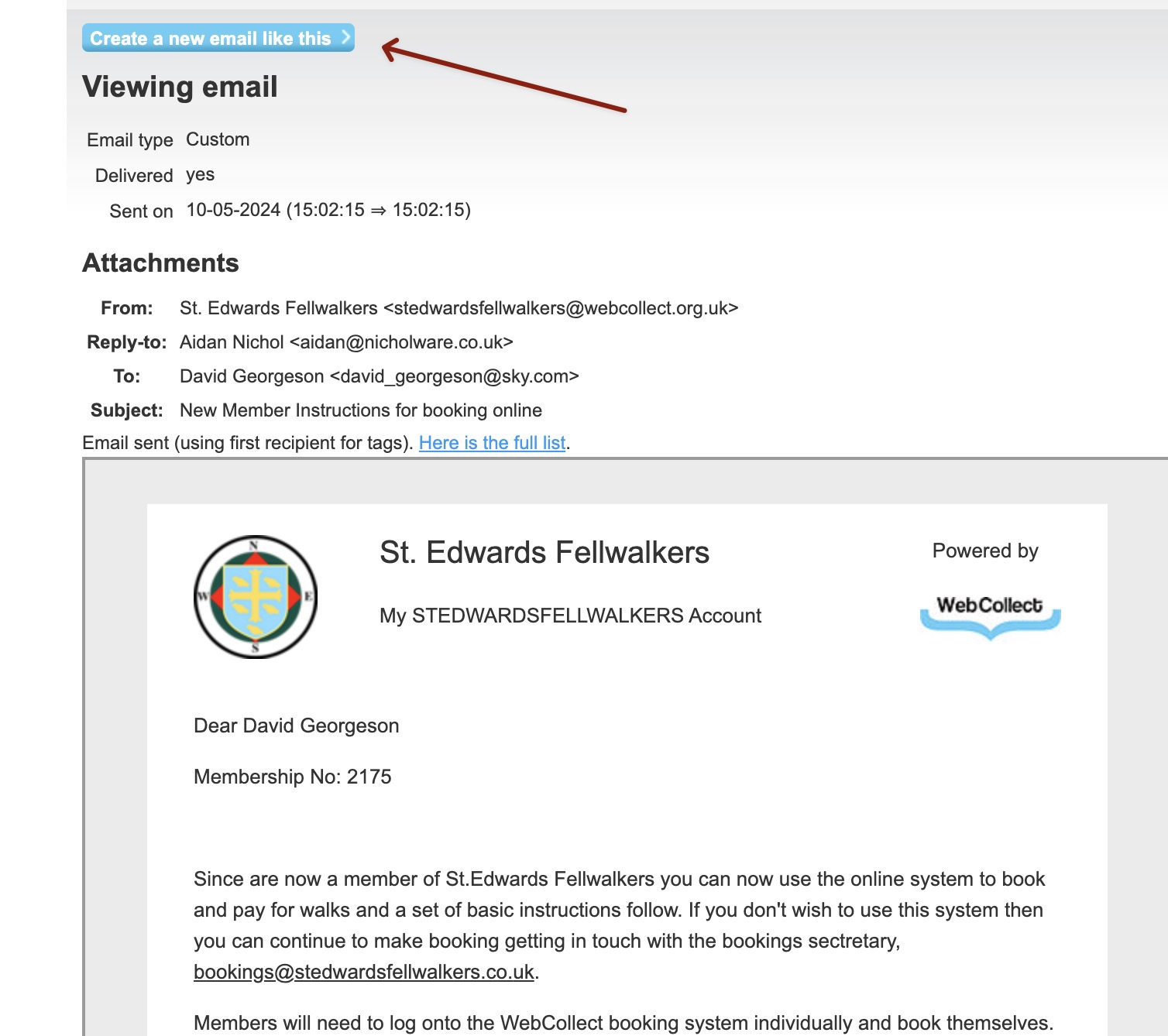
Create a new Draft
This will show you a preview of the message. Select create a new message like this to reuse the content of this message
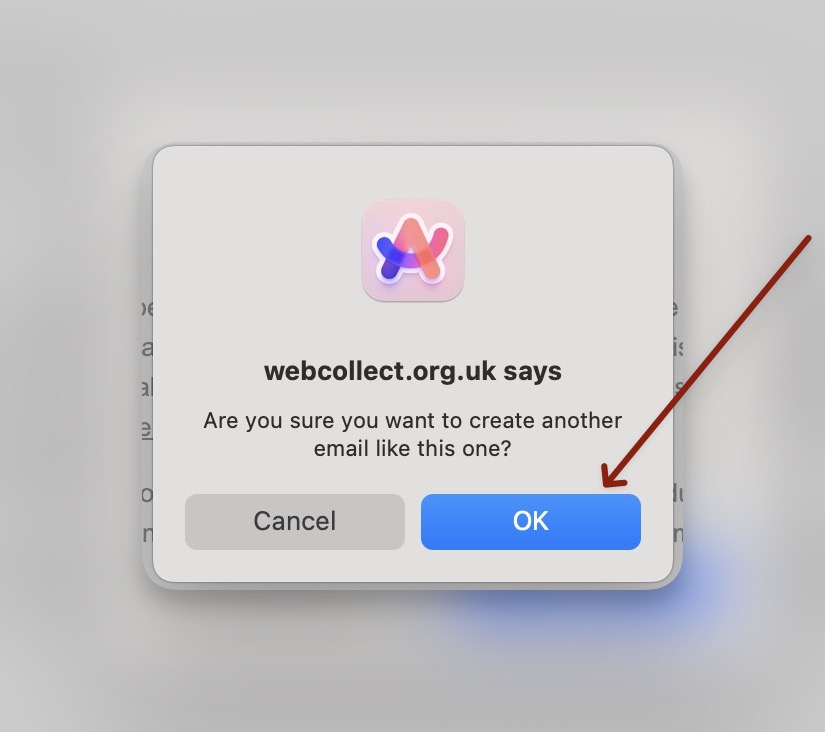
Click OK to the WebCollect warning message.
Update to recipients
Click the little icon next to the to recipients
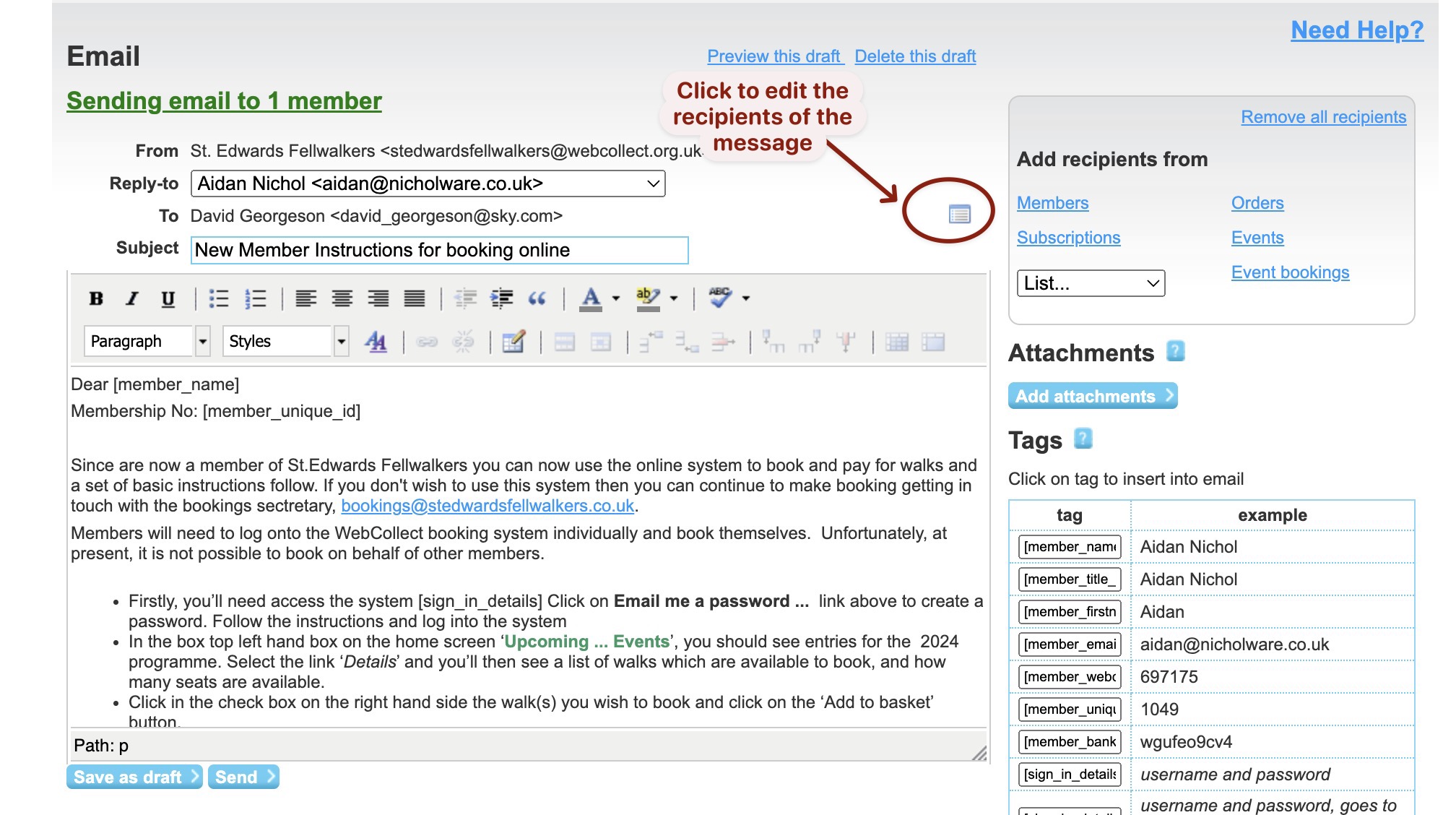
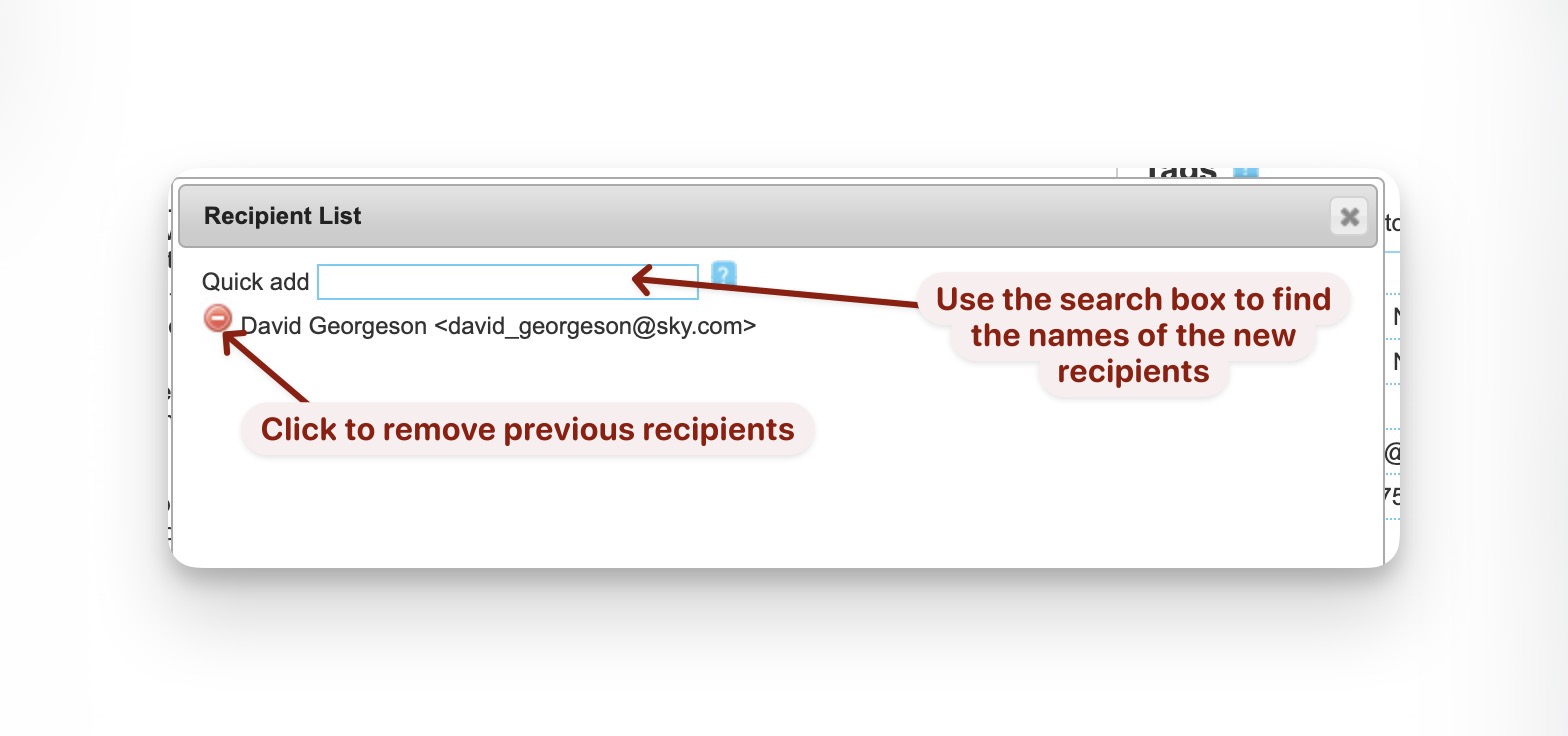
This allows you to remove the previous recipients and to add new ones
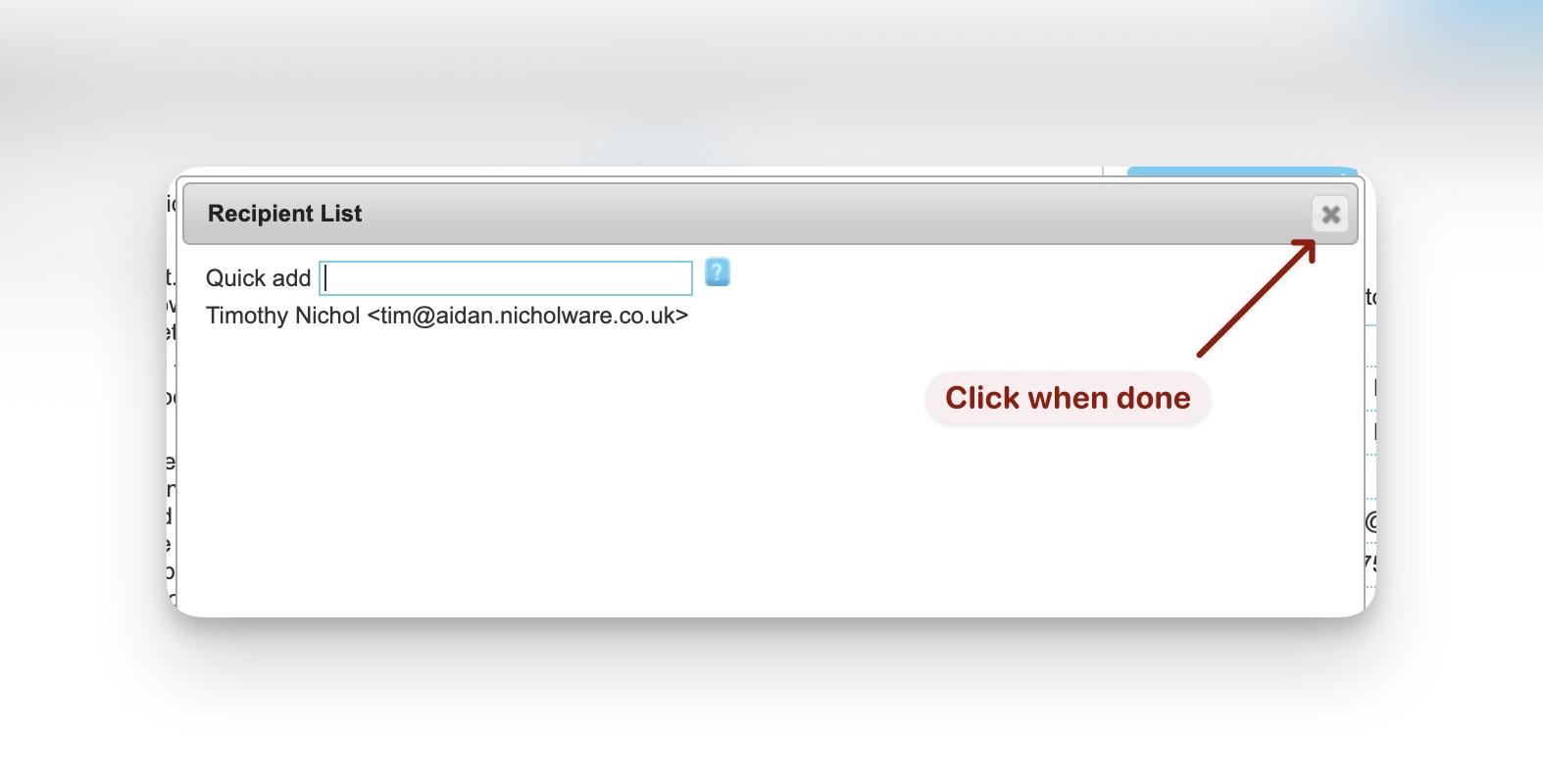
Click the X in the top right corner to exit this dialogue
Send the Message
At this point you can edit the text of the message, save as a draft etc. or send it.
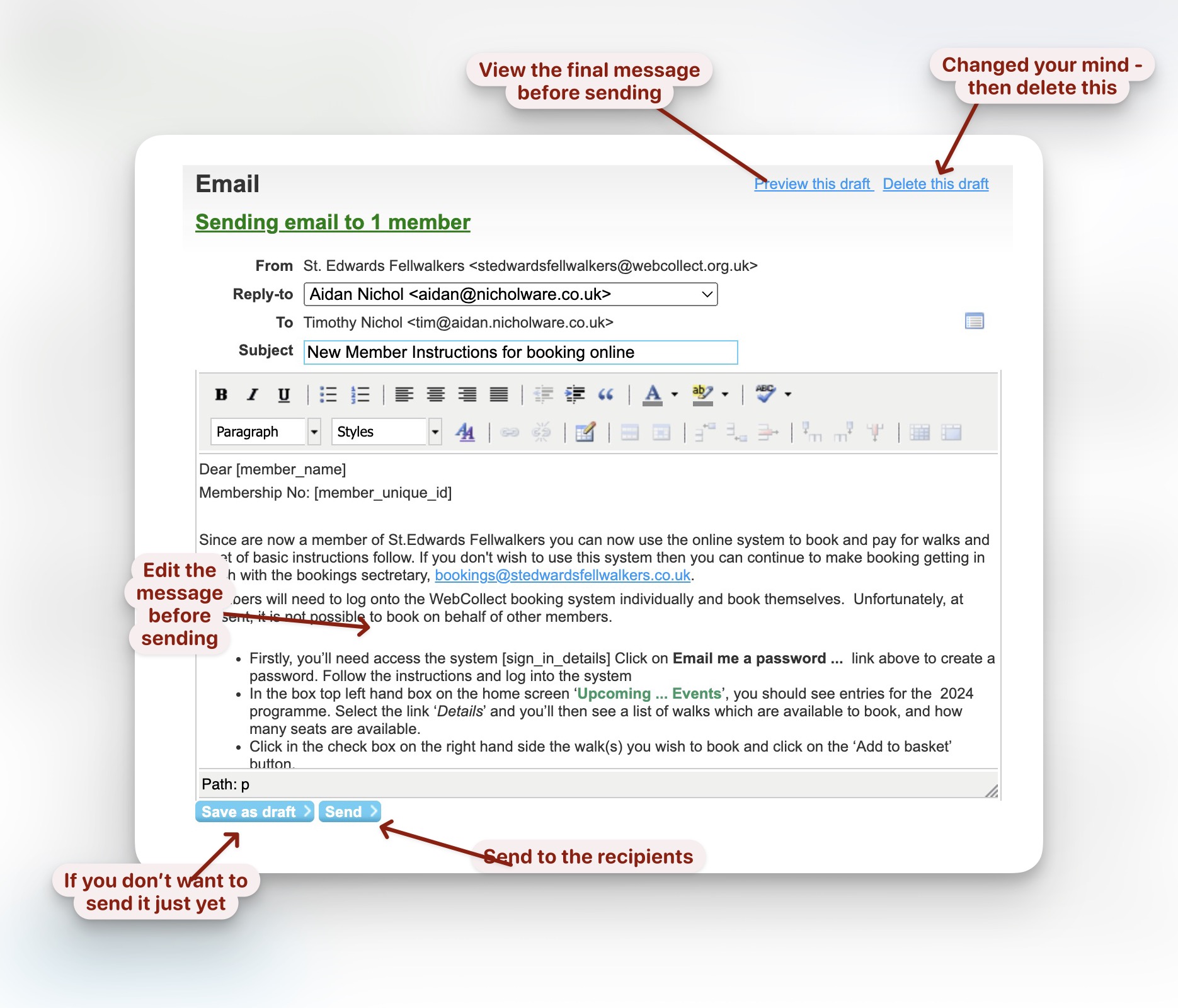
If you’ve amended the text then it makes sense to preview the message before sending it.
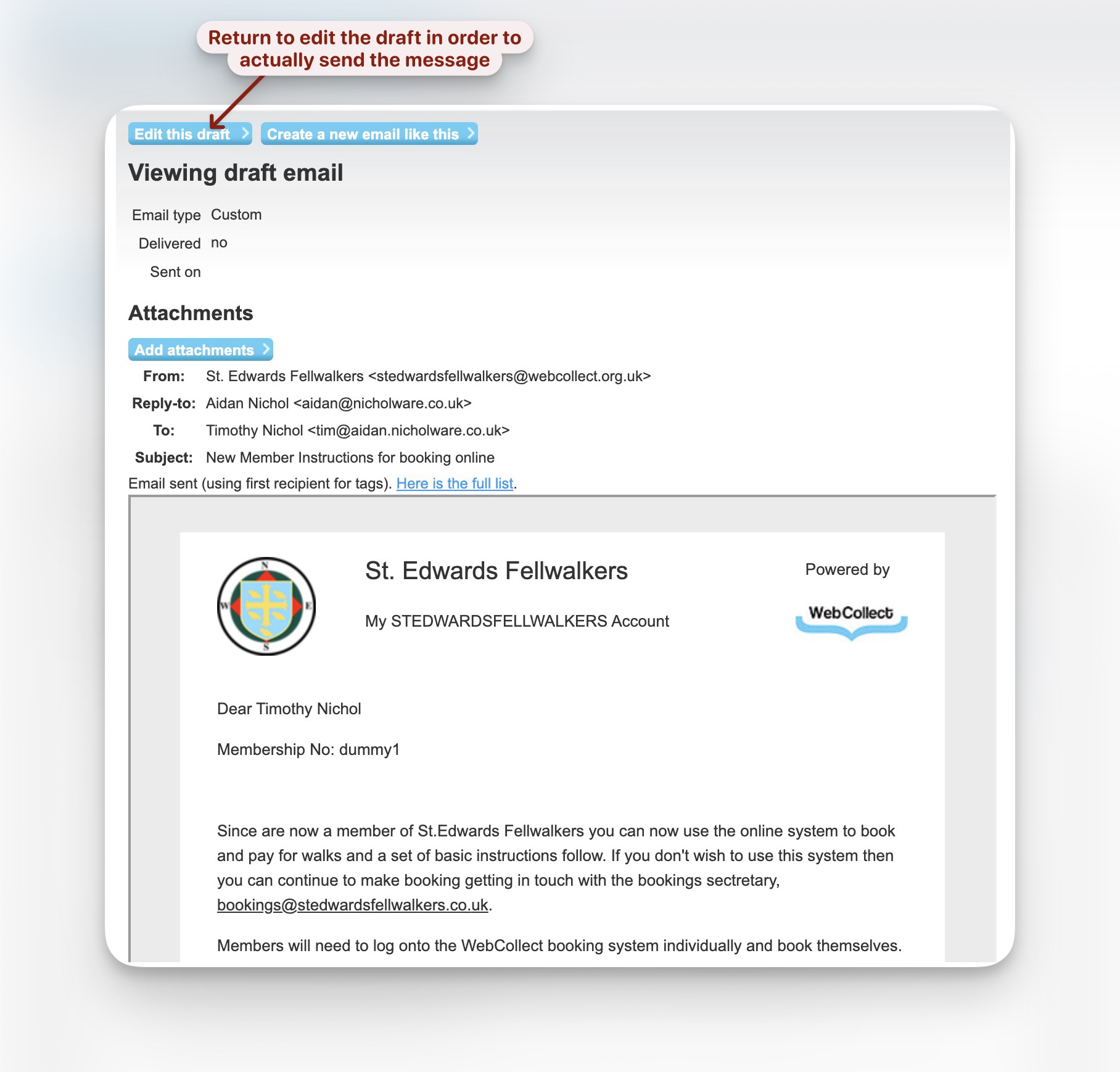
Preview the message
Once your done with the preview then select edit draft to return to the previous screen where you can make further changes or send the message